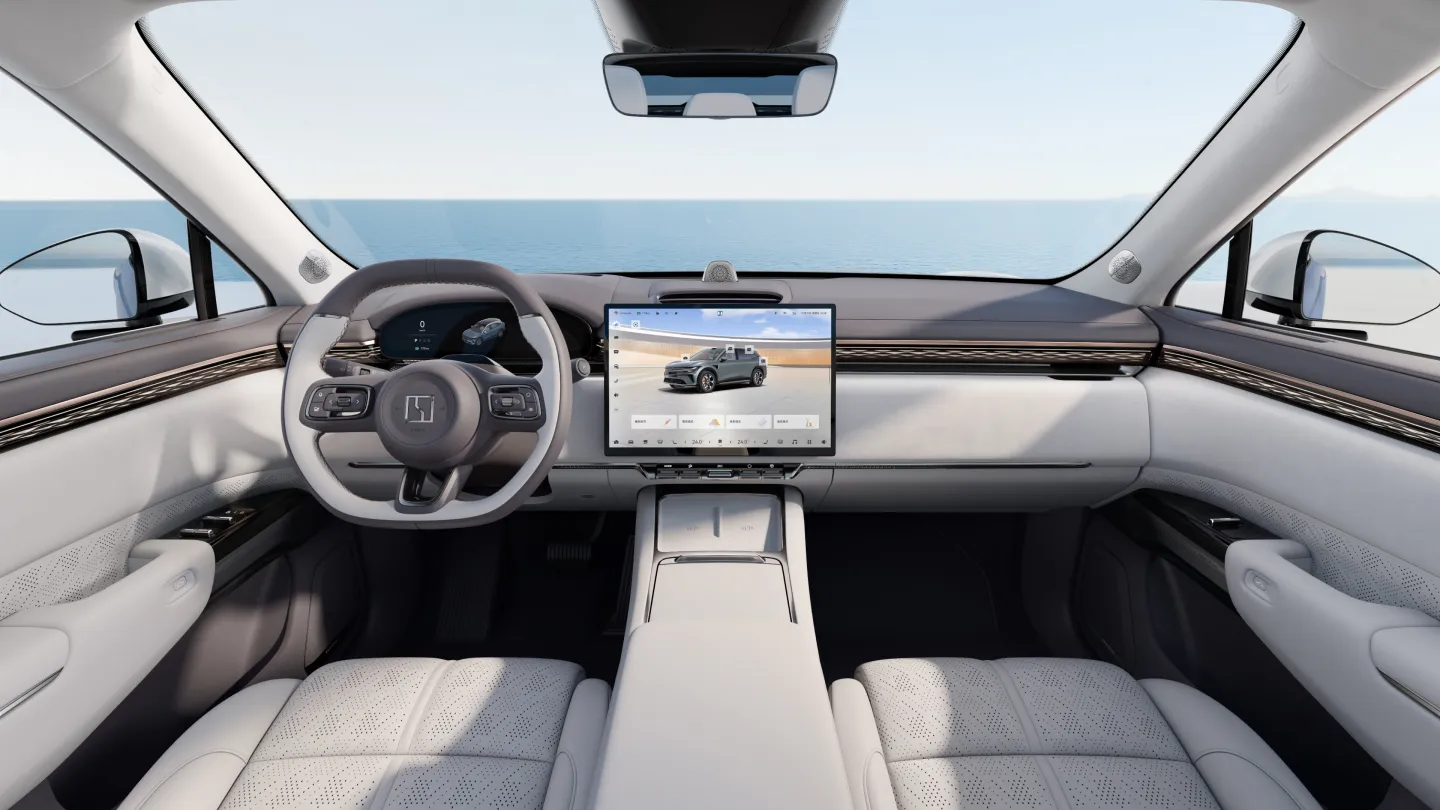
Manufacturer reference image. Controls and equipment vary by vehicle.
Sources checked:
Scope checked: 26 October 2026. China battery examples use the official configuration snapshots retrieved on 25 October 2026. Match the original market, model year, hardware and software before applying a procedure.
First confirm that the car supports projection
A USB socket, Bluetooth music and a large touchscreen do not establish Apple CarPlay or Android Auto support. Verify the exact model, original market, software build and whether the supported connection is wired, wireless or both. If the projection icon has never existed, investigate eligibility before treating the problem as a bad cable.
Do not copy overseas 001, X, 7X or 009 equipment claims onto a China-market car. The Australian 009 OS 2.2.1 announcement includes CarPlay improvements, but does not establish the same functionality on a Chinese 009. For 007, 007GT/7GT, MIX, 8X and 9X, require equally specific evidence rather than a generic brand list.
Keep four phone functions separate
- Bluetooth calls/audio: a basic media connection, not confirmation of projection.
- CarPlay or Android Auto: a compatible phone projects approved functions onto a supported vehicle display.
- Screen mirroring or an aftermarket app: a separate product with its own limitations; do not describe it as factory projection without evidence.
- A digital vehicle key: separate hardware and permissions, unrelated to whether maps appear through CarPlay.
Set up a supported connection
- Park and check the current phone requirements published by Apple or Google. Older vehicle instructions may quote an earlier Android minimum; use current phone-platform guidance.
- For supported wired operation, use the documented USB data port and a sound data-capable cable. A charge-only socket or cable can supply power without projection.
- For supported wireless operation, enable the required Bluetooth and Wi-Fi functions and select projection in the vehicle. Follow both screens’ pairing and permission prompts.
- On iPhone, check that Siri and CarPlay are permitted. On Android, confirm Android Auto is enabled on the car and the phone meets current requirements.
- Test a route, spoken guidance and a call while parked before relying on the connection during travel.
Phone charges, but no CarPlay or Android Auto appears
Check the port’s data function first, then test another known-good data cable without a hub or extension. Confirm projection is selected on the vehicle. If the same phone and cable work in another compatible car, this still does not prove that your ZEEKR’s current build supports the function.
If another supported phone works in this car, focus on the first phone’s settings and software. If neither phone works and the icon is absent, ask vehicle support to verify the feature for the VIN. Avoid changing several settings together; record one test and result at a time.
Bluetooth works, but wireless projection drops
Wireless projection needs more than a successful Bluetooth call. Check the phone’s Wi-Fi state and the saved vehicle connection. Temporarily test with one paired phone to separate competing connections or vehicle profiles. Check whether a phone hotspot or other network setting is conflicting, without assuming that mobile reception alone is responsible.
Apple’s troubleshooting includes forgetting the saved CarPlay vehicle and pairing again. Before doing so, identify that projection pairing separately from a digital key. Remove only the relevant connection, retain a physical key and re-establish it while parked. Use the vehicle’s documented restart procedure, not an invented button-hold sequence.
If the problem began after an update
Record both phone and vehicle versions and whether the fault affects all phones, only wireless operation or only one application. Check matched release notes and the phone vendor’s support page. Update through supported channels and test again; do not install another model’s firmware to recover an icon.
If only navigation, music or a call app fails, test another approved app within the same projection session. That separates an app permission or data issue from a complete projection failure. Keep screenshots and error times for support.
What to ask before buying a dongle
Ask what capability the product requires from the car. If its instructions require existing wired CarPlay or Android Auto, prove that first; the product description is not evidence that it adds a missing vehicle feature. Require written support for your exact software and return conditions.
A successful acceptance test should state the phone, OS, vehicle build, connection method and functions tested. It should not merely say ‘CarPlay installed’. Factory support, third-party projection and a Bluetooth audio workaround must remain clearly distinguishable.
Sources and version references
- Apple — CarPlay troubleshooting
- Google — Android Auto troubleshooting
- ZEEKR Europe — Android Auto setup
- ZEEKR Australia — 009 OS 2.2.1, regional release
Continue reading
- ZEEKR app not connecting: account, Bluetooth and mobile-data checks
- ZEEKR language settings: English, Russian and localisation checks
- ZEEKR OTA updates: check your market, software branch and readiness
Publisher and source basis
Published by Wenzhou Yutai Import and Export Co., Ltd. (YUTAI), the independent exporter operating CHINA ZEEKR AUTO. This is not the manufacturer’s official website. Manufacturer specifications and regional examples are reference information, not a guarantee of overseas compatibility or warranty.
About the exporter